How to Review and Override AI Grades
Last updated: 2026-07-06
Teacher review of AI grades is not an optional step in Writing, no kidding — it's architecturally required. The AI can propose a rubric score, a correction summary, and a composite grade, but none of it reaches a student until a teacher reviews it and takes a deliberate confirming action. This article walks through exactly how that review works.
Why this step exists
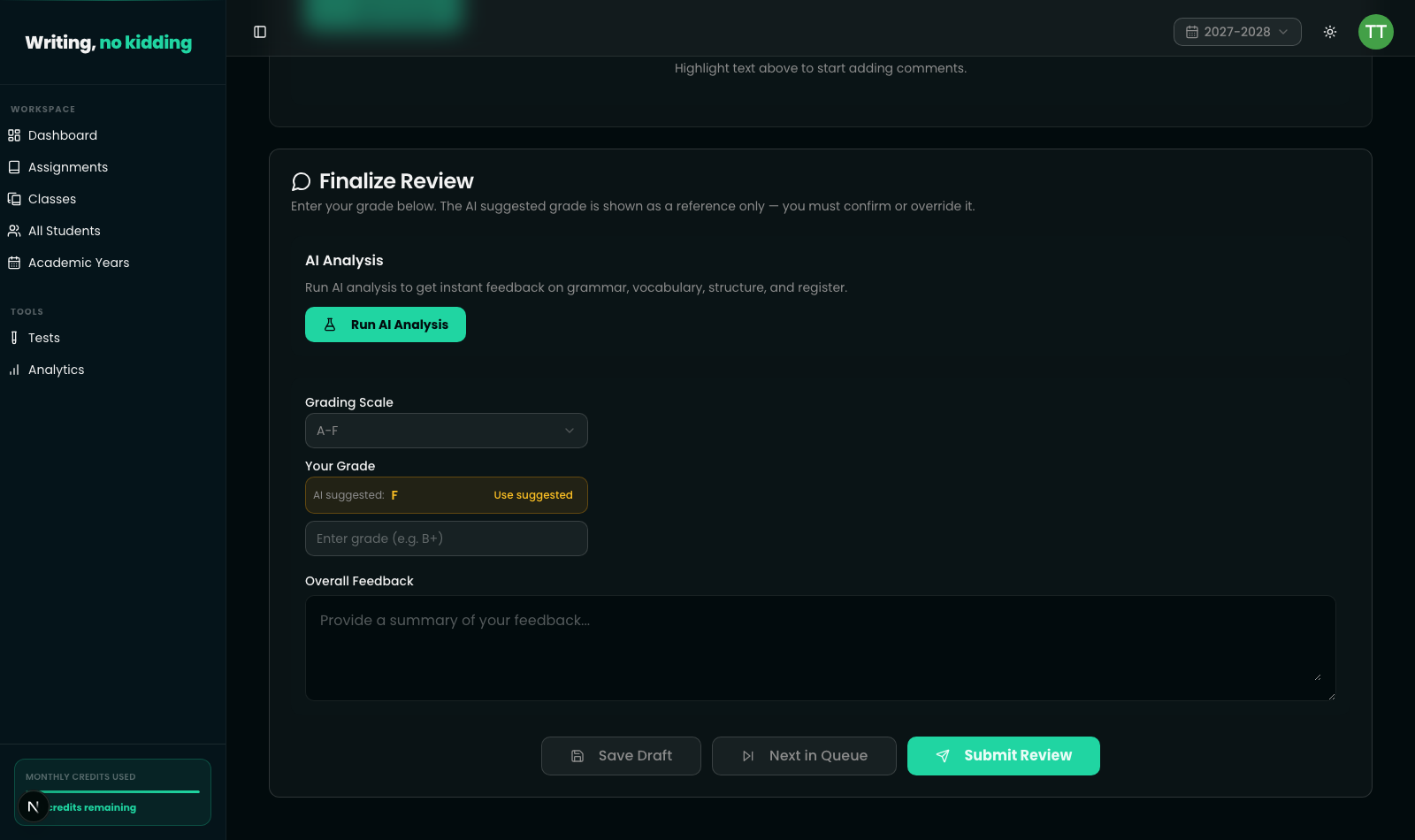
Under the platform's own AI documentation, AI-suggested rubric scores are marked so you can see they came from the model, and the Finalize Review panel's grade field is read-only as a suggestion, not as an input — you must enter your own grade before the Submit Review button becomes usable. You can adopt the AI's number by clicking "Use suggested" as a deliberate act, or type a different value. Either way, the recorded grade is the one you chose, not one the model silently applied.
This is the practical meaning of human-in-the-loop AI grading here: nothing is auto-applied, and every AI-scored criterion has to be touched by the teacher before the review can be submitted.
Steps
- Open a pending submission from Teacher → Submissions. Submissions awaiting review show a Grade/Feedback progress tracker at 0 complete.
- If you haven't already, run AI analysis, then review the inline corrections and, for rubric-graded work, each criterion's AI-selected level and rationale in the Rubric Evaluation card. Criteria scored by AI show a confidence value — pay closer attention to any criterion with a low confidence score, since that's where the model was least certain.
- Check the Composite Grade panel (if the assignment mixes rubric and quiz scores) to see the suggested Final Grade and how the Rubric and Quiz components were weighted into it.
- In the Finalize Review panel, either click "Use suggested" to adopt the AI's proposed grade, or type your own grade directly into the grade field — the field will not let you submit without one of these two actions.
- Add your overall feedback in the feedback box. If the rubric was AI-scored, tick the confirmation checkbox stating you've reviewed the AI-suggested grade before the Submit button unlocks.
- Click Submit Review to finalize. Only after this step does the student see their grade and feedback — you can also use Save Draft at any point to save progress without releasing anything to the student.
What "override" actually looks like
Overriding doesn't require rejecting everything the AI produced. In practice most teachers accept some AI-selected rubric levels, change others by clicking a different level button, and either accept or replace the suggested composite grade in the grade field. Every override is just a normal edit — there's no separate "override mode" to switch into.
Related reading
- How to Grade ESL Essays with AI — the full grading workflow this review step belongs to
- How AI Correction Feedback Works — what you're reviewing before you finalize a grade
- How to Push Grades to Google Classroom — sending a finalized grade onward once it's confirmed
Ready to try this in your own classroom?
Related articles
How to Grade ESL Essays with AI
The end-to-end grading workflow: run AI analysis on a submission, review the proposed score, and finalize the grade.
How AI Correction Feedback Works
What the AI Correction Tool actually checks — grammar, vocabulary, structure, and register — and how it presents strengths and next steps.
How to Use Grading Standards: CEFR and Cambridge
Grade against CEFR (A1-C2) or Cambridge B2 First Writing band descriptors instead of a generic scale, so AI feedback matches a real standard.