How to Push Grades to Google Classroom
Last updated: 2026-07-06
Once you've reviewed and finalized a student's grade in Writing, no kidding, you don't have to re-enter it anywhere else. You can push grades to Google Classroom directly from the submission review screen or from a class's assignment view, one submission at a time or in bulk for a whole class.
Before you push a grade
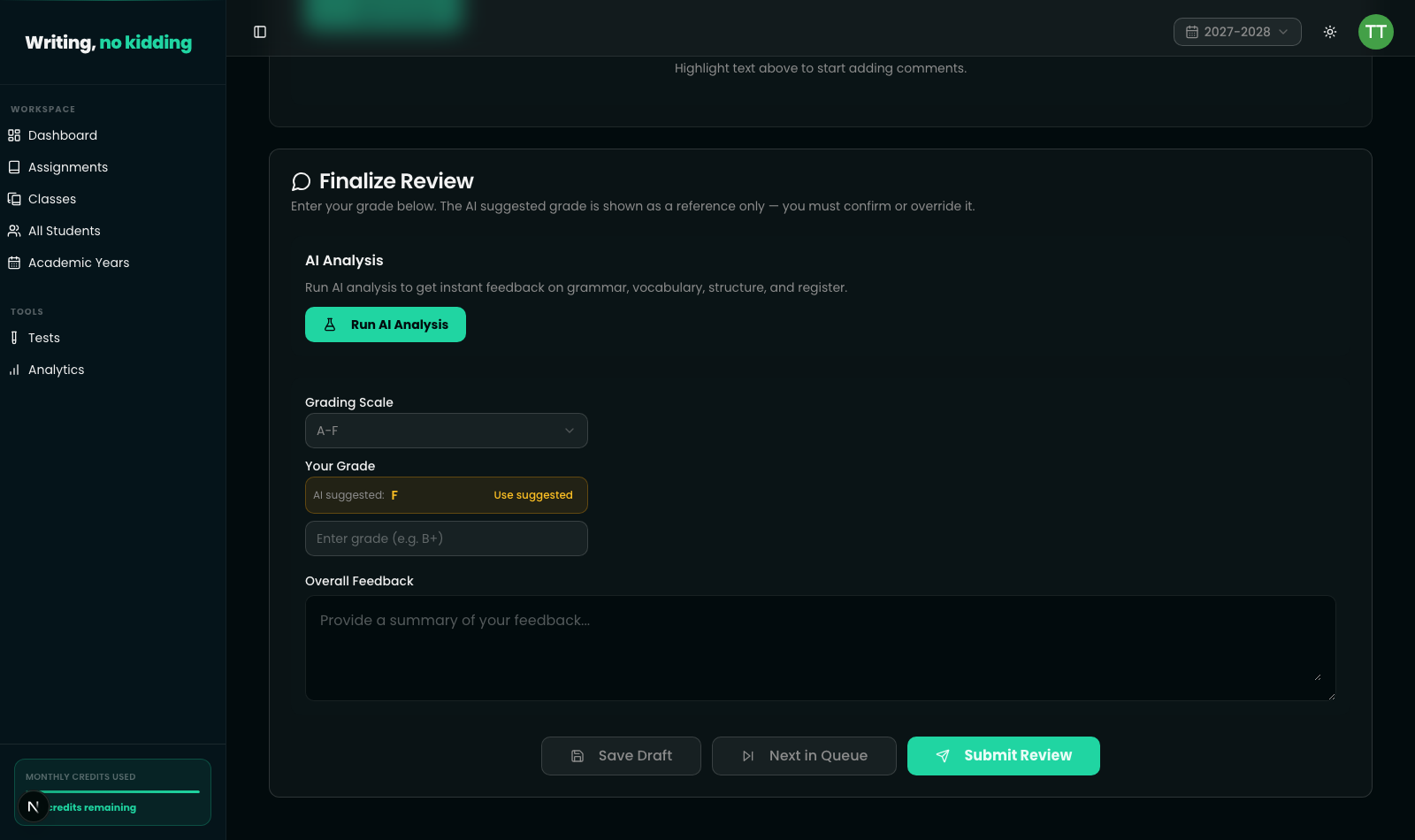
Pushing to Google Classroom only works for assignments that were posted as linked Classroom coursework in the first place. If you haven't connected your account and posted the assignment to Classroom, there's no gradebook entry to push a grade into — set that up first with How to Set Up Google Classroom Sync. You'll also need a finalized grade: a submission has to be reviewed and have a composite grade recorded before a push button appears for it, which normally happens as part of How to Review and Override AI Grades.
Pushing an individual grade
On a submission's review screen, once the review is submitted and a composite grade exists, a Push to GC control appears for assignments linked to Google Classroom. Clicking it sends the composite percentage to that student's grade on the linked coursework item in the Classroom gradebook. The button then shows a Pushed state with a checkmark, along with the date it was sent, so you always know at a glance whether a given grade has made it to Classroom or is still waiting.
If something goes wrong, the button tells you why instead of failing silently: a Reconnect GC prompt means your Google Classroom connection needs to be re-authorized with grading permission; Not found in GC means the assignment or submission no longer exists on the Classroom side; and No GC access means you may have lost access to that course in Classroom itself (for example, if you were removed as a co-teacher).
Posting Google Classroom gradebook sync in bulk
You don't have to push grades one student at a time. From a class's assignment page, every reviewed submission with a composite grade and a linked Classroom coursework item shows in a table with its own GC Grade column and push control. Select multiple submissions using the checkboxes, and a Push to GC (N) button appears above the list showing how many are queued — clicking it sends all selected grades to the Classroom gradebook in one action, which is the fastest way to post grades to Google Classroom for an entire class after a grading session.
Steps
- Confirm the assignment was posted to Google Classroom (it will show a linked coursework indicator) — if not, see How to Set Up Google Classroom Sync.
- Review the submission and submit a finalized grade, so a composite grade exists for it.
- Open the submission's review screen, or the class's assignment view for bulk pushing.
- For a single submission, click Push to GC next to that student's grade.
- For multiple submissions, select them with the checkboxes and click Push to GC (N) to send them all at once.
- Confirm the control shows Pushed — if it instead shows Reconnect GC, Not found in GC, or No GC access, resolve that issue and try again.
Related reading
- How to Set Up Google Classroom Sync — connect your account and post assignments as linked coursework
- How to Review and Override AI Grades — finalize the grade that gets pushed
- How to Grade ESL Essays with AI — the grading workflow that produces the composite grade
Ready to try this in your own classroom?
Related articles
How to Set Up Google Classroom Sync
Connect your Google Classroom account, import rosters, and post assignments as linked coursework in a few clicks.
How to Review and Override AI Grades
AI proposes a grade — you always have the final say. How to review, adjust, and finalize scores before publishing to students.
How to Grade ESL Essays with AI
The end-to-end grading workflow: run AI analysis on a submission, review the proposed score, and finalize the grade.