How to Create Matching Exercises
Last updated: 2026-07-06
Matching exercises — pairing a term with its definition, a sentence half with its counterpart, or a question with its response — are a staple of Cambridge-style ESL exams. Writing, no kidding includes an ESL vocabulary matching worksheet maker built into the assignment builder, so you can generate a full set of matching pairs from a topic in seconds, or bring your own terms and have AI fill in the rest.
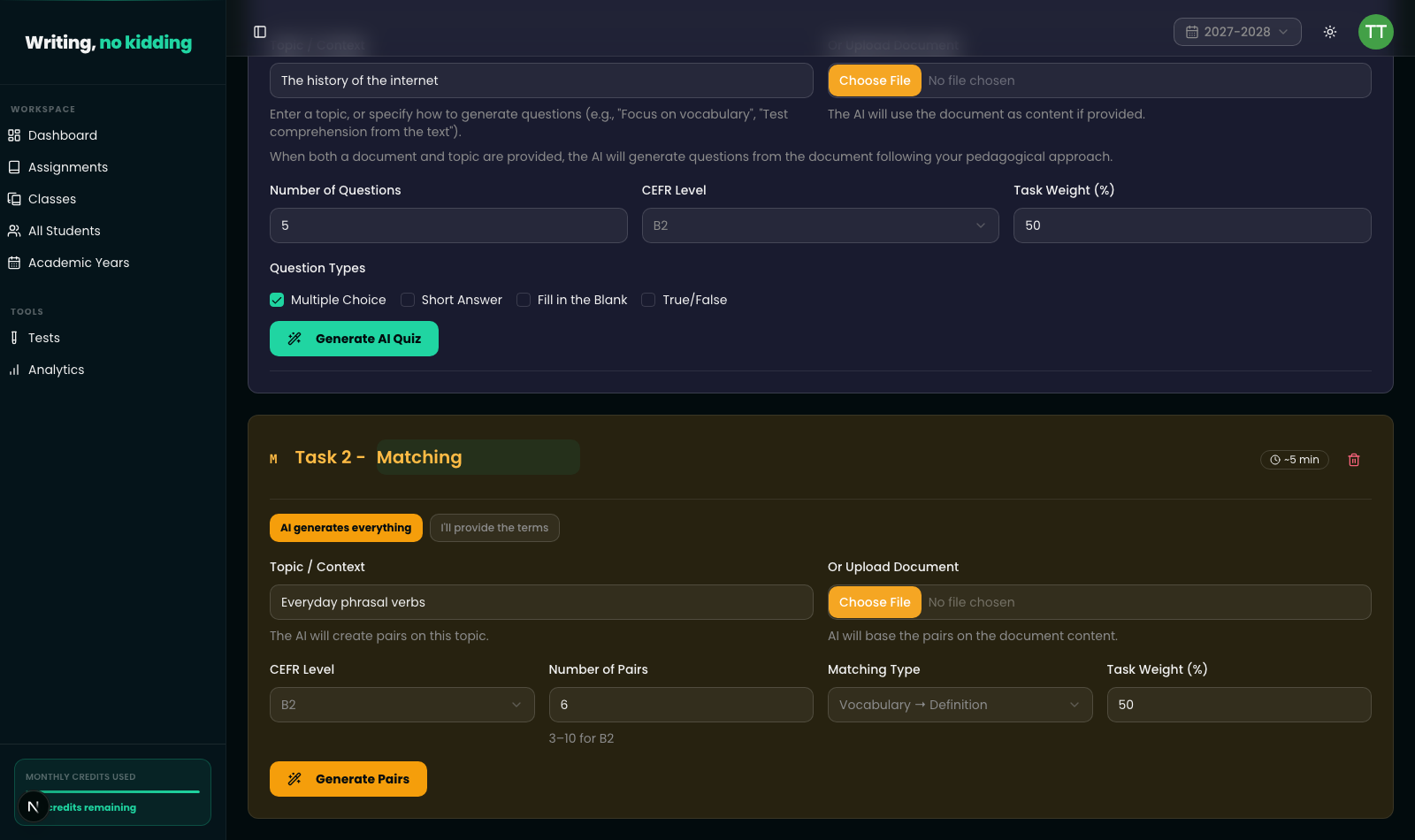
Adding a matching task
Open Teacher → New Assignment and click "Matching Task" among the task-type buttons at the top of the builder. This adds a matching task card with a toggle at the top:
- "AI generates everything" — you give a topic (and optionally a document), and AI invents both sides of every pair.
- "I'll provide the terms" — you type in your own list of terms (3 to 15), and AI generates the matching side (e.g. definitions) for each one you supply.
Configuring the exercise
When AI generates everything is selected, this matching exercise generator shows:
- Topic / Context — e.g. "Everyday phrasal verbs" or "Business collocations." AI creates pairs on this topic.
- Or Upload Document — upload a file and AI bases the pairs on its content instead.
- CEFR Level — A1 through C2.
- Number of Pairs — the allowed range depends on the CEFR level you pick (the field shows the current min/max, e.g. "3–6 for B2").
- Matching Type — the kind of pairing to generate. The available types are:
- Vocabulary → Definition
- Word → Collocation
- Sentence Halves
- Question → Response
- Task Weight (%) — how much this task counts toward the assignment grade.
If you switch to "I'll provide the terms," the Topic/Context, Number of Pairs, and Matching Type fields are replaced by a list of term inputs (add or remove rows between 3 and 15), and the button changes to "Generate Definitions" instead of "Generate Pairs."
Steps
- Open Teacher → New Assignment and click "Matching Task."
- Choose "AI generates everything" or "I'll provide the terms."
- If AI generates everything: set the Topic/Context (or upload a document), CEFR Level, Number of Pairs, and Matching Type. If providing your own terms: enter each term.
- Set the Task Weight (%).
- Click "Generate Pairs" (or "Generate Definitions" if you supplied your own terms).
- Review the generated pairs before assigning the task to students.
Review the pairs before assigning
Like every generated exercise type in the app, matching pairs should be checked before you publish the assignment — confirm definitions are accurate for the CEFR level chosen and that no pair is ambiguous (a common risk with collocations and sentence-halves types especially).
Related
Matching exercises pair well with other structured task types. See How to Create Word and Sentence Transformation Exercises, How to Create an ESL Quiz, and How to Build Reading Comprehension and Gapped-Text Exercises for other exercise types you can mix into the same assignment.
Ready to try this in your own classroom?
Related articles
How to Create Word and Sentence Transformation Exercises
Build Cambridge B2 First-style key word transformation and sentence transformation exercises for Use of English practice.
How to Create an ESL Quiz
Build multiple-choice, short-answer, and fill-in-the-blank quizzes with AI-assisted question generation.
How to Build Reading Comprehension and Gapped-Text Exercises
Create Cambridge-style gapped-text and reading comprehension exercises, with AI helping generate passages and questions.