How to Create an ESL Quiz
Last updated: 2026-07-06
Writing tasks aren't the only thing you can add to an assignment. Writing, no kidding also includes an AI quiz generator for ESL teachers built directly into the assignment builder, so you can add a comprehension or vocabulary quiz alongside — or instead of — a writing task, without writing the questions yourself.
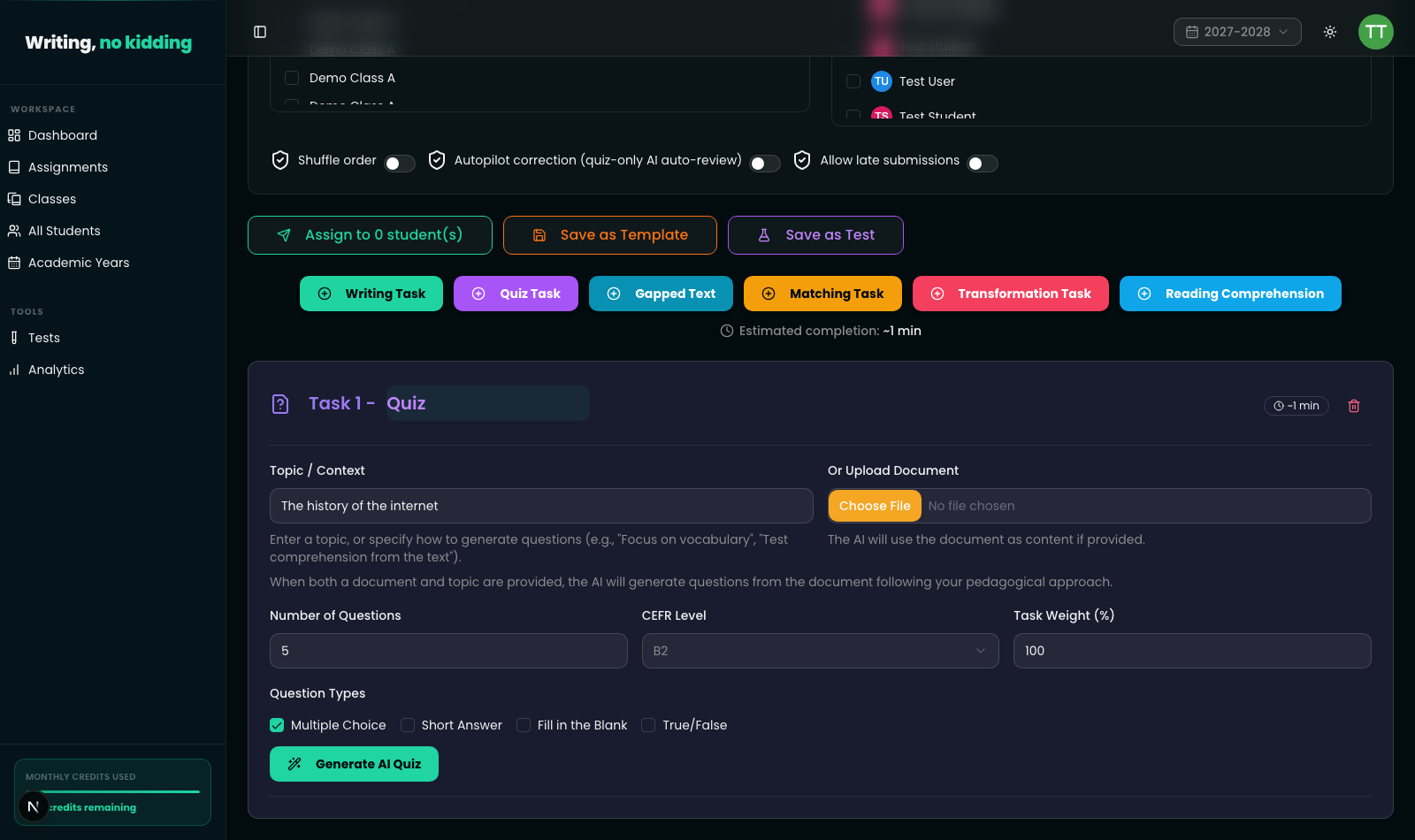
Adding a quiz task
Open Teacher → New Assignment and click the "Quiz Task" button among the task-type buttons at the top of the builder (alongside Writing Task, Gapped Text, Matching Task, Transformation Task, and Reading Comprehension). This adds a quiz task card to your assignment.
Inside the quiz task card, you have two ways to give the AI source material:
- Topic / Context — a plain-text field where you either name a topic (e.g. "The history of the internet") or describe how you want questions generated (e.g. "Focus on vocabulary," "Test comprehension from the text").
- Or Upload Document — upload a file and the AI will use its content as the source instead of, or in combination with, your topic description. If you provide both, the AI generates questions from the document following the pedagogical approach you described in Topic/Context.
Setting quiz parameters
Below the topic/document fields, this reading comprehension quiz generator lets you configure:
- Number of Questions — how many questions to generate.
- CEFR Level — A1 through C2, so question difficulty and vocabulary match your students' level.
- Task Weight (%) — how much this quiz task counts toward the assignment's total grade.
- Question Types — checkboxes for Multiple Choice, Short Answer, Fill in the Blank, and True/False. You can select any combination; the AI will mix question types accordingly.
Once these are set, click "Generate AI Quiz."
Steps
- Open Teacher → New Assignment and click "Quiz Task" to add a quiz task.
- Enter a Topic / Context, or upload a source document (or both).
- Set the Number of Questions, CEFR Level, and Task Weight (%).
- Choose one or more Question Types: Multiple Choice, Short Answer, Fill in the Blank, True/False.
- Click "Generate AI Quiz."
- Review the generated questions and edit any that need adjusting before assigning.
Review before you assign
As with every AI-generated exercise in Writing, no kidding, generated quiz questions are a starting draft, not a finished product. After generation, check the questions for accuracy, difficulty, and phrasing before assigning the task to students — this AI quiz maker for teachers is meant to save you drafting time, not to replace your judgment on what actually gets graded.
Related
A quiz is one of several structured task types you can mix into an assignment. See How to Create Matching Exercises and How to Build Reading Comprehension and Gapped-Text Exercises for the others, or start from How to Create Your First Writing Assignment if you're setting up an assignment from scratch.
Ready to try this in your own classroom?
Related articles
How to Create Matching Exercises
Build vocabulary, collocation, and functional-language matching exercises in the Cambridge exam style.
How to Build Reading Comprehension and Gapped-Text Exercises
Create Cambridge-style gapped-text and reading comprehension exercises, with AI helping generate passages and questions.
How to Create Your First Writing Assignment
Step-by-step guide to creating an ESL writing assignment: set the CEFR level, due date, rubric, and assign it to your classes.