Understanding Student Dashboards and Progress
Last updated: 2026-07-06
A student progress dashboard for teachers is only useful if you understand what your students are actually looking at when they log in. In Writing, no kidding, students land on their own dashboard — separate from anything you see as a teacher — and it's worth knowing how it's organized, because it shapes how (and when) students engage with the assignments you create.
What students see first
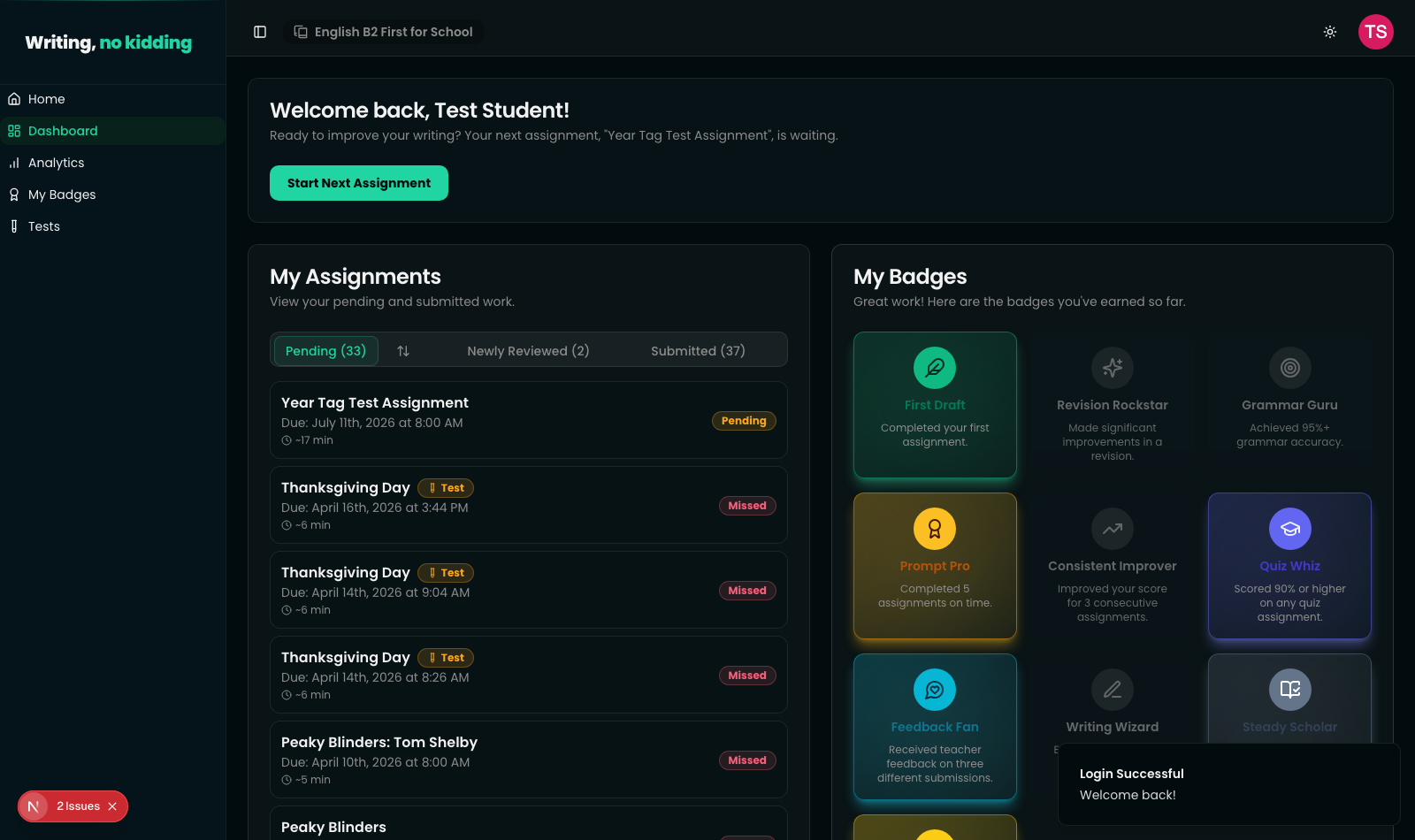
The dashboard greets each student by name — "Welcome back, [Name]!" — and surfaces the single most relevant next action with a Start Next Assignment button, along with a one-line nudge naming the specific assignment waiting for them. There's no need for students to dig through menus to find what's due; the dashboard decides for them.
My Assignments: pending, reviewed, submitted
Below the welcome banner sits the My Assignments panel, split into three tabs:
- Pending — assignments not yet submitted, sorted by due date, with status badges like Pending or Missed so a student can immediately see what's overdue.
- Newly Reviewed — submissions you've finished grading that the student hasn't opened yet, so they know new feedback is waiting.
- Submitted — work already turned in, awaiting or past review.
Each tab shows a live count (for example, Pending (33), Newly Reviewed (2), Submitted (37)), and each assignment row displays its due date and estimated completion time. This is the same underlying assignment and submission data you manage from the teacher side — a student's "Pending" tab is just their half of the same record you see as "awaiting submission" in your gradebook, which is why tracking student progress here stays consistent with what you see in your own dashboard and analytics.
My Badges: a student performance dashboard built around consistency
Alongside assignments, students have a My Badges panel that gamifies the habits you actually want to encourage — submitting on time, revising, and engaging with feedback. Badges are earned automatically based on submission and grading activity, for example:
- First Draft — completed their first assignment.
- Prompt Pro — completed 5 assignments on time.
- Feedback Fan — received teacher feedback on three different submissions.
- Revision Rockstar — made significant improvements in a revision.
- Grammar Guru — achieved 95%+ grammar accuracy.
- Consistent Improver — improved their score for 3 consecutive assignments.
- Quiz Whiz — scored 90% or higher on any quiz assignment.
- Writing Wizard — earned a writing score of 90 or above.
- Steady Scholar — completed 10 reviewed assignments.
Locked badges are shown grayed out with their requirement visible, so students can see exactly what they still need to do — a small nudge that tends to matter more for reluctant writers than a grade alone.
Why this matters for you as a teacher
You don't manage badges directly, and they don't factor into grades or rubric scores — they're a student-facing layer on top of the same submission data you already review. But understanding this dashboard helps explain student behavior you'll notice from the teacher side: a flurry of on-time submissions right before a deadline, or a student revising a low-scoring draft, often traces back to a badge just out of reach.
Related articles
Ready to try this in your own classroom?
Related articles
How to Organize Classes and Academic Years
Set up classes, roll students into new academic years, and keep past years archived without losing historical data.
How to Grade ESL Essays with AI
The end-to-end grading workflow: run AI analysis on a submission, review the proposed score, and finalize the grade.
Getting Started with Writing, no kidding
An overview of how Writing, no kidding works for ESL/EFL teachers — from creating your first assignment to reviewing AI-assisted grades.