How to Build a Writing Rubric
Last updated: 2026-07-06
Rubrics are what turn "AI feedback" into consistent, defensible grading. If you're looking for an ESL writing rubric maker that lets you define your own criteria, weights, and performance levels — instead of accepting a generic one-size-fits-all score — Writing, no kidding's rubric builder does exactly that, and every rubric you create here is what the AI grading engine and your own manual review both use to score student submissions.
There are three ways to create a rubric from the New Rubric page: build one by hand with the guided builder, describe one in a prompt and let AI generate it, or import an existing rubric from a PDF or image. This article covers the guided builder — the primary, most controllable path — and the AI-prompt alternative. If you already have a rubric on paper or as a PDF, see How to Import a Rubric from a PDF instead.
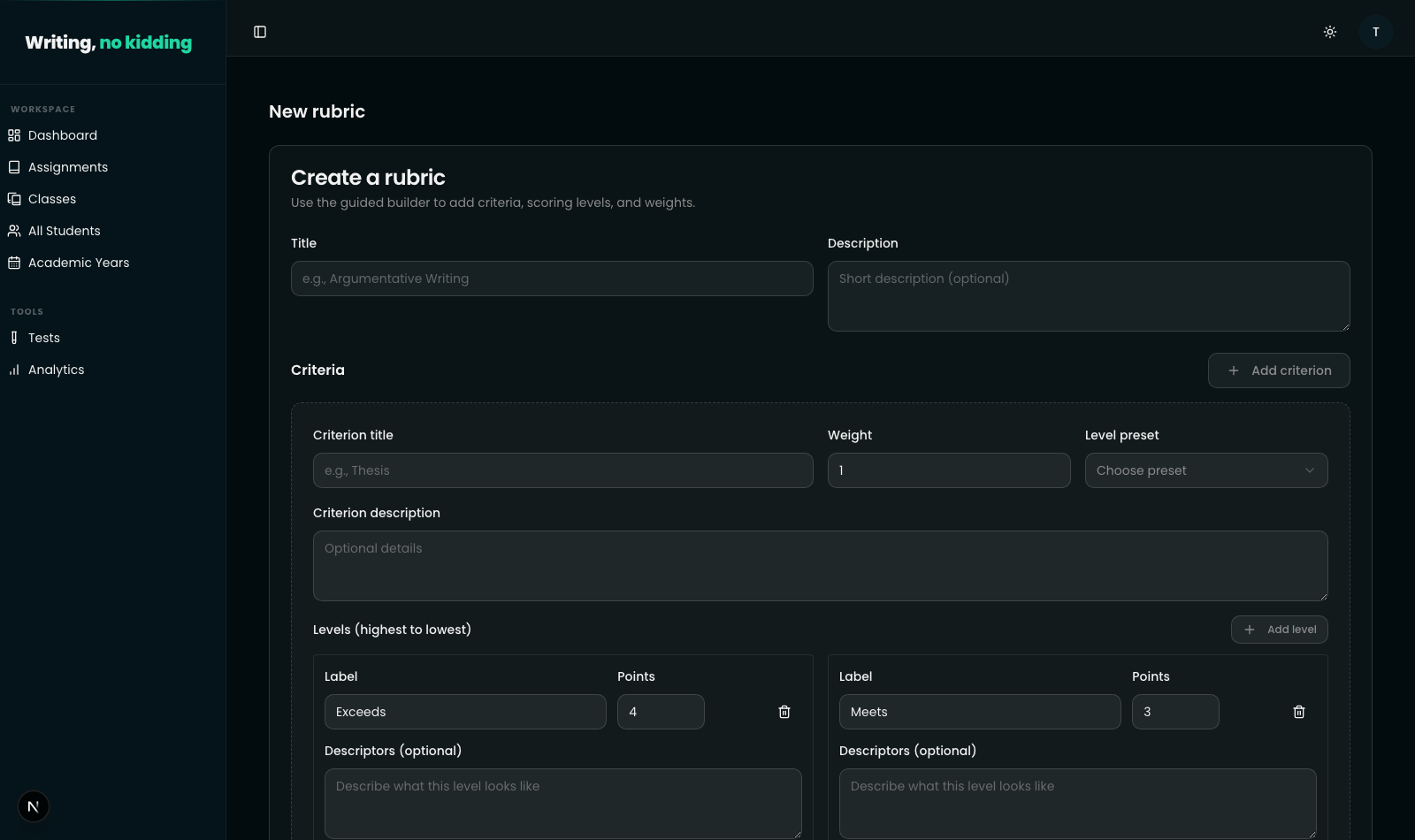
Using the guided rubric builder
Go to Teacher → Rubrics → New rubric. The "Create a rubric" card at the top of the page is the guided builder. Start with a Title (e.g. "Argumentative Writing") and an optional Description.
Every rubric is made of one or more criteria — the individual things you're grading, like Thesis, Grammar, or Organization. Each criterion has:
- Criterion title — what you're assessing.
- Weight — a number that determines how much this criterion counts relative to the others (weights don't need to sum to 100; they're relative).
- Level preset — a shortcut that fills in either a 4-level scale (Exceeds/Meets/Approaches/Below, worth 4/3/2/1 points) or a 5-level scale (Excellent/Good/Satisfactory/Needs Improvement/Insufficient, worth 5 through 1 points). You can still edit every level afterward.
- Criterion description — optional context for what this criterion covers.
Below that, Levels (highest to lowest) lists each performance level for the criterion, each with its own Label, Points, and optional Descriptors — a short paragraph describing what that level of writing actually looks like (this is what most sharpens AI grading consistency, since it gives the model concrete language to match against). You can add or remove levels freely with "Add level," and add as many criteria as you need with "Add criterion" at the top of the Criteria section.
Building a writing rubric template step by step
This is the core flow for teachers who want an AI rubric generator with full control over the result rather than accepting AI output outright.
Steps
- Go to Teacher → Rubrics → New rubric and fill in the rubric Title and optional Description.
- Click "Add criterion" to create your first criterion, or edit the one already provided.
- Enter the Criterion title, set its Weight, and either pick a Level preset (4 or 5 levels) or build levels manually.
- For each level, set the Label, Points, and optional Descriptors describing what that level of work looks like.
- Click "Add criterion" again to repeat for each additional criterion you want to grade.
- Click "Save rubric" once every criterion has a title and at least one level.
Generating a rubric with AI instead
If you'd rather describe what you want than build it field by field, use the "Create with AI (Gemini)" card further down the New Rubric page. Type a prompt describing your criteria, levels, and any scoring preferences — for example, "Create a 5-criterion rubric for argumentative writing with 4 performance levels (Excellent/Good/Satisfactory/Needs Improvement). Weight Thesis and Evidence higher." — then click "Generate rubric." You'll land on the rubric's edit screen afterward, where you can review and adjust every criterion, weight, and level before it's used to grade anything.
This is a genuine writing rubric template ESL teachers can adapt quickly, since the AI-generated draft still lands in the same editable structure as a hand-built rubric — nothing is locked in until you save it.
Where to go next
Once your rubric exists, you can attach it to a writing task when creating your first assignment, or pair it with an official framework instead of a custom scale — see How to Use Grading Standards: CEFR and Cambridge. If you already have a rubric as a document rather than starting from scratch, use How to Import a Rubric from a PDF.
Ready to try this in your own classroom?
Related articles
How to Import a Rubric from a PDF
Already have a rubric as a PDF? Import it directly instead of rebuilding your criteria and bands by hand.
How to Use Grading Standards: CEFR and Cambridge
Grade against CEFR (A1-C2) or Cambridge B2 First Writing band descriptors instead of a generic scale, so AI feedback matches a real standard.
How to Create Your First Writing Assignment
Step-by-step guide to creating an ESL writing assignment: set the CEFR level, due date, rubric, and assign it to your classes.